
WiFi Signal Map
Susan Litwiller Executive NeuroCoaching LLCTools
4.34.00 Reviews
- Version
- 1.0.3
- Installs
- 10.00K
- Age Rating
- Everyone
Screenshots
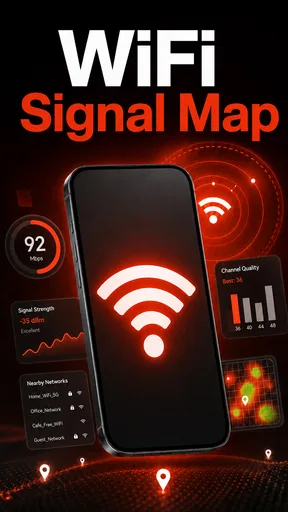
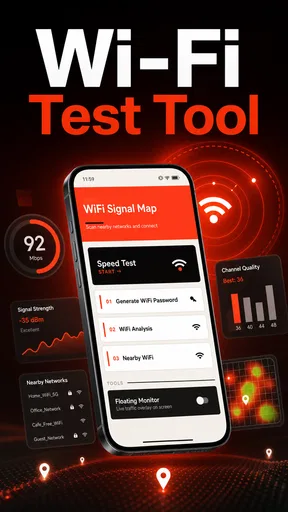
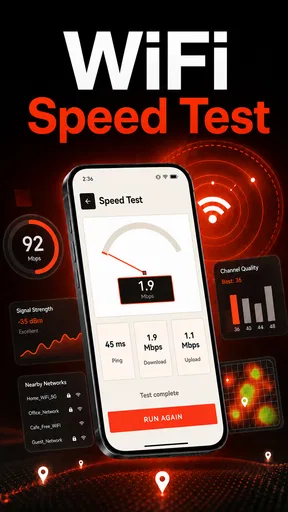
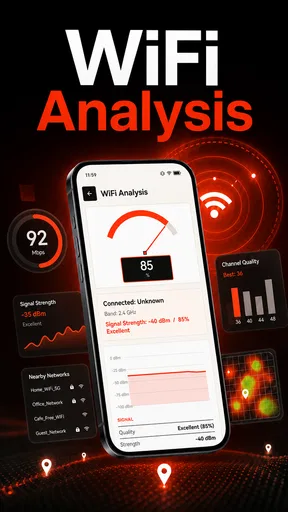
Our Review of WiFi Signal Map
 Analysis by Appyee
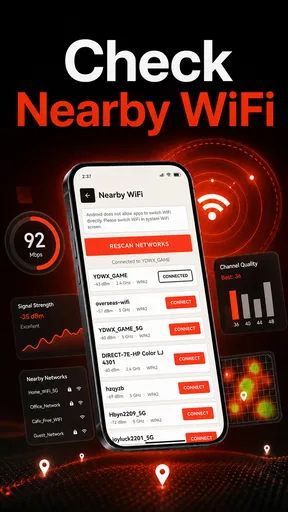
I often reach for a Wi-Fi utility when the problem is not “the internet is down,” but “something feels wrong and I need to see what is happening.” That is the space where WiFi Signal Map makes sense. It is a free tools app from Susan Litwiller Executive NeuroCoaching LLC that scans nearby Wi-Fi networks and presents real-time signal information in a more useful way than simply looking at the Wi-Fi icon in the status bar.
My overall impression is that it is aimed at quick, practical diagnosis rather than replacing a full network-management suite. The appeal is immediate: open it when a connection feels unreliable, inspect the surrounding wireless environment, and use what you see to decide where to move, whether a different network is preferable, or whether the problem is probably beyond the phone’s wireless signal. That focused role makes it approachable, although it also means advanced users may eventually want tools with deeper controls.
From a weak connection to a clearer decision
I find a weak-connection check most useful when it leads to a sensible next step, not just another number to interpret. In the next section, I look at how a household can make that check repeatable—using the same spot and a clear question—before deciding whether to adjust the room, ask the router manager for help, or investigate the service itself.
Starting with the actual problem
The most useful way to approach this app is with a specific question. Maybe video calls work in the living room but become unstable in a bedroom. Perhaps a laptop connects normally while a phone keeps falling back to mobile data. Or you are setting up a new router and want a quick sense of how its signal reaches the places where you actually use your devices.
In those situations, the usual alternatives are not very satisfying. Android and iOS network settings are good for joining a network, forgetting one, or checking the connection currently in use, but they do not turn the surrounding wireless landscape into a practical troubleshooting view. A router’s own administration page can reveal more technical information, yet reaching it often involves logging in, finding the right menu, and understanding terminology that is excessive for a simple room-by-room check.
This app sits between those two approaches. It gives me a dedicated place to inspect nearby networks and their live signal behavior without making the first step feel like network engineering. That is especially helpful for someone who knows a connection is poor but does not yet know whether distance, nearby networks, or the phone’s position is contributing to the issue.
I would not treat the signal indicator as a promise of internet speed. A strong wireless signal can still lead to slow browsing if the broadband connection is congested, the router is overloaded, or the service provider is having trouble. The app is most valuable when I use it to separate the wireless part of the problem from everything that happens after the device reaches the router.
Opening the scan and reading the scene
The first step is straightforward: launch the app and let it scan the surrounding Wi-Fi environment. The important change is psychological as much as technical. Instead of guessing from one small icon, I can look at nearby networks together and compare their real-time signal information in one place.
That comparison is useful in a shared building. A connection may appear fine when viewed alone, but a crowded local environment can explain why performance varies from one room or time of day to another. Seeing several networks together gives me context. It does not automatically identify the cause of every slowdown, but it helps me avoid blaming the wrong device or changing settings at random.
A practical workflow is to begin in the location where the problem is most obvious. I would scan there, note which network I am trying to use and how its signal appears relative to the others, then repeat the check closer to the router. The difference between those two observations is often more informative than a single reading. If the target network improves substantially near the router, placement or distance deserves attention. If it remains strong in both places while the connection is still slow, I would investigate the internet service or router load instead.
The key habit is to compare locations, not just glance at one reading. A single scan can tell me what the phone sees at one moment. A small sequence of scans turns that information into a decision-making workflow.
Turning live information into an everyday action
Imagine I am working from home and a video meeting keeps becoming unstable at the desk. I would open the app at the desk first, then walk toward the router and scan again. If the signal improves as I move, I have a sensible low-cost experiment: reposition the router, move the desk, or use the stronger location for demanding work. If nothing changes, moving furniture is unlikely to solve the real issue, and I can stop wasting time on that theory.
That is one of the app’s strongest everyday uses. It does not need to perform a complicated configuration change to be useful. Its value is in making the next action more informed. For a family member who asks why streaming works in one part of the home but not another, I could use the scan as a visual explanation rather than relying on vague advice such as “stand closer to the router.”
It can also help before buying additional equipment. I would not use it as the only basis for choosing a mesh system or extender, but it can reveal whether the problem is concentrated in a distant area or whether the wireless environment looks reasonably healthy. That distinction matters: an extender may help coverage, while a broadband or router problem will require a different remedy.
Another useful workflow is checking a temporary location. In a guest room, small office, classroom, or rental property, I may need to decide where a phone or tablet will have the most dependable connection. A quick scan can guide placement without requiring access to the router’s controls. This is a modest use case, but it is exactly the kind of moment when a focused tool is more convenient than a full network dashboard.
The handoff from phone to router and back again
Wireless troubleshooting often involves several handoffs: the phone observes the local radio environment, the user interprets that observation, and then someone changes the physical setup or checks the router. This app helps with the first handoff, from an invisible wireless condition to information I can inspect. It does not complete the entire repair by itself.
For example, I might discover that the signal is weak in a particular corner. The next step could be moving the router higher, removing an obvious physical obstruction, or relocating the device that needs the connection. After each change, I would scan again from the same spot. Keeping the test location consistent is important; otherwise, I may mistake a change in position for an improvement caused by the adjustment.
If another person manages the router, the app can make that conversation more precise. Instead of saying “the Wi-Fi is bad,” I can explain that the phone sees a noticeably different signal in a certain area and ask the router owner to check placement or coverage. The app does not replace the owner’s router interface, but it can give the discussion a concrete starting point.
There is also a handoff to other devices. A phone’s view is useful, but it is not identical to what a laptop, smart television, or game console experiences. I would use the app to identify a likely coverage pattern, then confirm the actual problem on the device that matters. This is an important limitation: a phone-based scan is evidence, not a universal verdict for every client on the network.
What the result means—and what it does not
The result I want from this app is not a magic “fixed” message. It is a clearer answer to one of three questions: is the wireless signal weak where I need it, does the surrounding environment look busy enough to investigate further, or does the signal appear reasonable and point me toward another cause?
That makes the app particularly suitable for first-line troubleshooting. It can prevent unnecessary resets, random router repositioning, and premature purchases. If the signal improves after a simple change, I have a practical outcome. If it does not, I have narrowed the problem and know that I need to examine the router, broadband service, or the affected device.
I also like that the app is free. There is little commitment involved in trying it for a specific problem, and the Everyone content rating makes it suitable for a broad audience. Its current version is 1.0.3, and the minimum operating-system requirement is 10, so compatibility should be checked before installation on an older device. Those details matter more than they might seem: a troubleshooting tool is only useful if it can run on the phone available when the problem occurs.
The app has reached over ten thousand installs and holds a 4.3 average from around fifty ratings, with a small number of written reviews. I see those figures as a sign of early practical interest rather than a reason to assume it will suit every network setup. The more important question is whether its focused scan-and-observe workflow matches what I need.
Three less obvious ways to use it well
First, I would use repeated scans as a before-and-after check rather than trusting memory. People tend to remember that a connection “felt better” after moving a router, but a consistent test location makes the comparison more meaningful. I would scan from the same chair or desk, make one physical change, and scan again. This simple discipline reduces false conclusions.
Second, I would use it to decide when not to buy an extender. If the target network already appears strong where the problem occurs, adding coverage hardware may not address the real fault. The app cannot diagnose broadband quality by itself, but it can stop me from treating every slow connection as a distance problem.
Third, I would use it during a handoff between people. When a less technical household member reports trouble, I could ask them to scan from the problem spot and share the observation verbally with whoever manages the router. That creates a repeatable starting point for troubleshooting instead of sending someone through unfamiliar router menus.
A fourth useful habit is to compare the same place at different times when the issue is intermittent. A single scan may look normal during a quiet period. Repeating the check when the problem is happening can reveal whether the local wireless picture changes. I would still avoid claiming that a busy scan proves the cause, but it can tell me whether timing deserves further investigation.
Where the workflow breaks
The app’s simplicity is also its boundary. Someone who needs channel planning, detailed router statistics, packet analysis, speed testing, device identification, or long-term monitoring will probably find a dedicated network-analysis tool more appropriate. This app is about seeing nearby Wi-Fi signal information in real time, not managing an entire network from one screen.
It is also not the right choice when the main question is internet performance rather than wireless reach. A speed test, router diagnostic page, or service-provider check may provide better evidence if the signal is strong but downloads remain slow. Likewise, if only one laptop has trouble while other devices work normally, I would investigate that laptop’s driver, adapter, or software rather than assuming the shared Wi-Fi is at fault.
Another point of friction is interpretation. Live signal information can look authoritative, but radio conditions change as people move, doors open, devices connect, and the phone changes position. I would avoid making a permanent network decision from one glance. The app helps me observe; it does not remove the need for judgment.
Users who want automatic fixes may also be disappointed. The practical workflow still depends on the person taking the next step: changing location, checking the router, testing another device, or contacting the internet provider. That is not a flaw for a diagnostic tool, but it is worth understanding before expecting a one-tap solution.
Who should install it
I would recommend it to people who regularly troubleshoot home Wi-Fi, renters who cannot access advanced router settings, remote workers checking a desk location, and anyone who wants a friendlier starting point than a router administration page. It is also a sensible utility to keep available for occasional coverage checks because the price removes the usual barrier to experimentation.
I would be more cautious about recommending it to network professionals or enthusiasts who already rely on detailed analyzers. They may appreciate a quick visual check, but they are likely to want information and controls beyond this app’s focused purpose. It is also not a substitute for testing the actual device and service involved in a serious reliability problem.
My final take after following the workflow
WiFi Signal Map succeeds when the goal is to move from “the Wi-Fi feels unreliable” to a grounded next action. I can scan the area, compare the signal where the problem occurs with a better location, hand that observation to the person managing the router, and test whether a physical change made a difference. That is a useful, realistic workflow, especially for everyday home troubleshooting.
I would not present it as a complete network diagnostic suite, and I would not confuse signal strength with internet speed. Its best qualities are focus, accessibility, and the ability to make an invisible wireless condition easier to discuss. Its main weakness is that the final diagnosis still depends on the user understanding what the reading can and cannot prove.
For a free tools app from Susan Litwiller Executive NeuroCoaching LLC, it offers a straightforward reason to exist: inspect the Wi-Fi environment before guessing. If that is the problem you are trying to solve, I think it is worth trying. If you need deep technical analysis, automated correction, or proof of broadband performance, I would choose a more specialized alternative and use this app only as an initial observation tool.
Verdict
Strengths of WiFi Signal Map
- Shows nearby Wi‑Fi networks and their signal strength clearly.
- Helps identify stronger connection spots around your location.
- Useful for comparing available networks before connecting.
- Simple map-based interface makes network discovery convenient.
- Can assist with basic home or office Wi‑Fi coverage checks.
Limitations of WiFi Signal Map
- Map accuracy depends on available crowdsourced network data.
- Some features may require location access to work properly.
- Signal readings can change quickly as you move around.
- May display networks without providing their passwords or access.
- Background scanning can increase battery consumption on some devices.
Similar Picks in This Category
View All
Google LLC4.0

Gboard - the Google Keyboard
Google LLC4.5

Google Play services
Google LLC4.3

Google Play Store
Google LLC4.9

Files by Google
Google LLC4.5

SHAREit: Transfer, Share Files
Smart Media4U Technology Pte.Ltd.4.3
Frequently Asked Questions
What is WiFi Signal Map and what can I use it for?
WiFi Signal Map is designed to help you explore and understand nearby wireless networks by displaying Wi-Fi access points, signal information, and, depending on the available data, their approximate locations on a map. It can be useful when checking coverage, finding stronger connections, planning a home or office network, or identifying areas with many competing networks. Results may vary according to your device, location, permissions, and available community or map data.
Does WiFi Signal Map show the exact location and password of Wi-Fi networks?
The app should not be treated as a tool for revealing private Wi-Fi passwords or guaranteeing an exact physical location for every network. Map positions may be estimated, user-submitted, or based on previously collected information, so they can be incomplete or outdated. The application is primarily useful for viewing network availability and signal-related details, while access to protected networks still requires permission from the network owner.
Does WiFi Signal Map require an internet connection or location permission?
Many of the app’s features may require location access because Android and iOS use location services when scanning or identifying nearby Wi-Fi networks. An internet connection can also be necessary to load map tiles, synchronize network information, or access online databases. If you deny permissions, the app may still open, but scanning, mapping, or location-based results could be limited. Review the permission requests carefully before accepting them.
Is WiFi Signal Map accurate enough for improving my home Wi-Fi connection?
WiFi Signal Map can provide helpful clues, but its readings should be considered an aid rather than a professional network survey. Signal strength can change as you move around, and walls, furniture, interference, router settings, and device hardware all affect the results. Use the displayed information to compare areas and identify possible congestion, then confirm improvements with your own speed and stability tests.
Is WiFi Signal Map safe to download and use?
Before installing WiFi Signal Map, download it from the official Google Play Store or Apple App Store and check the listed developer, recent reviews, update history, and privacy information. Because the app may handle location, network, or device-related data, read its permission requests and privacy policy. Avoid entering sensitive credentials into unofficial versions, and disable permissions that are not necessary for the features you intend to use.
